How to Add a Telegram Channel QR Code on Your OBS so it displays when you stream
One of the easiest ways to grow your Telegram Channel while you stream is to add a QR code to link to it in the corner of the screen when you stream. You set it up once & it works every time you go live.
Step 1: Get Your Telegram Link
Step 1: – Copy your Telegram channel link. Example: https://t.me/YourChannelName
This link will send users from your stream to your Telegram Channel.
Test & makes sure it works before you create the QR code
Step 2: Create Your QR Code
Put your Telegram link into a QR code generator and download it as a PNG.
(There are lots of QR code generator sites. Make sure whatever you use doesn’t expire)
People can scan instead of typing. It makes joining your TG Channel from a mobile device fast and easy.
Step 3: Add the QR Code to OBS
In OBS, go to Sources → Add → Image → Upload your QR code. The move the QR code image to where you want it on screen.
Placement TIP: The best place is the corner of the screen where you can point to it, but it doesn’t get in the way of the show. However – Cam Sites also place their own water marked logo in the corner. If your QR code is over their logo it won’t work. Chaturbate logo is in the top right, Stripchat in the bottom right. So where you position it may depend on which platforms you are using. The bottom left of screen is usually the safest option.
Now viewers will be able to see your QR code during your stream. Your stream can now help to grows your Telegram Channel automatically.
Step 4: Some TIPS for getting Room Users to follow the QR code
> Mention it & point to the QR code during the stream
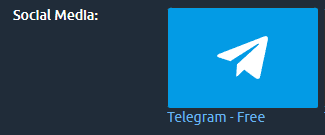
> Add the QR Code to images in your BIO section (also add the link to TG Channel under social media
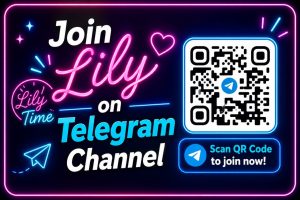
> Create a Banner to promote your TG Channel with the QR code in it to run in your public chat notifications (Chaturbate)
> Add the QR Code to Your ‘On a Break’ Screen
Why this HELPS You Make More Money
People who join your TG Channel are much more likely to return to your stream and tip. Your Telegram Channel helps you turn viewers into regulars.
Quick Checklist
– Telegram Channel link ready
– QR code created
– Added to OBS
– Placed in corner of screen
– Message added
– Mention during stream
– Create Notification banner
– Use on break screen
Final Takeaway
Your stream gets attention.
Your Telegram Channel keeps it.
Set this up once and it works every time you go live.
Want to Make More Money from Your Cam Work?
Get a clear breakdown of your setup, what’s working, and what to fix to increase tips and keep more regulars.
- What’s working in your room
- What is holding you back
- What to fix first
- What to say that will increase tips
- Simple steps to improve your results